How to Change Your Installed Pixel in Easy Pixel
If you need to replace the pixel currently installed on your store, you can do this directly through Easy Pixel. This article walks you through the steps to switch to a new pixel.
How to change your installed pixel
Ready to switch your pixel? Here's how.
- Open Easy Pixel in your Shopify store by clicking on Apps and then on Easy Pixel.
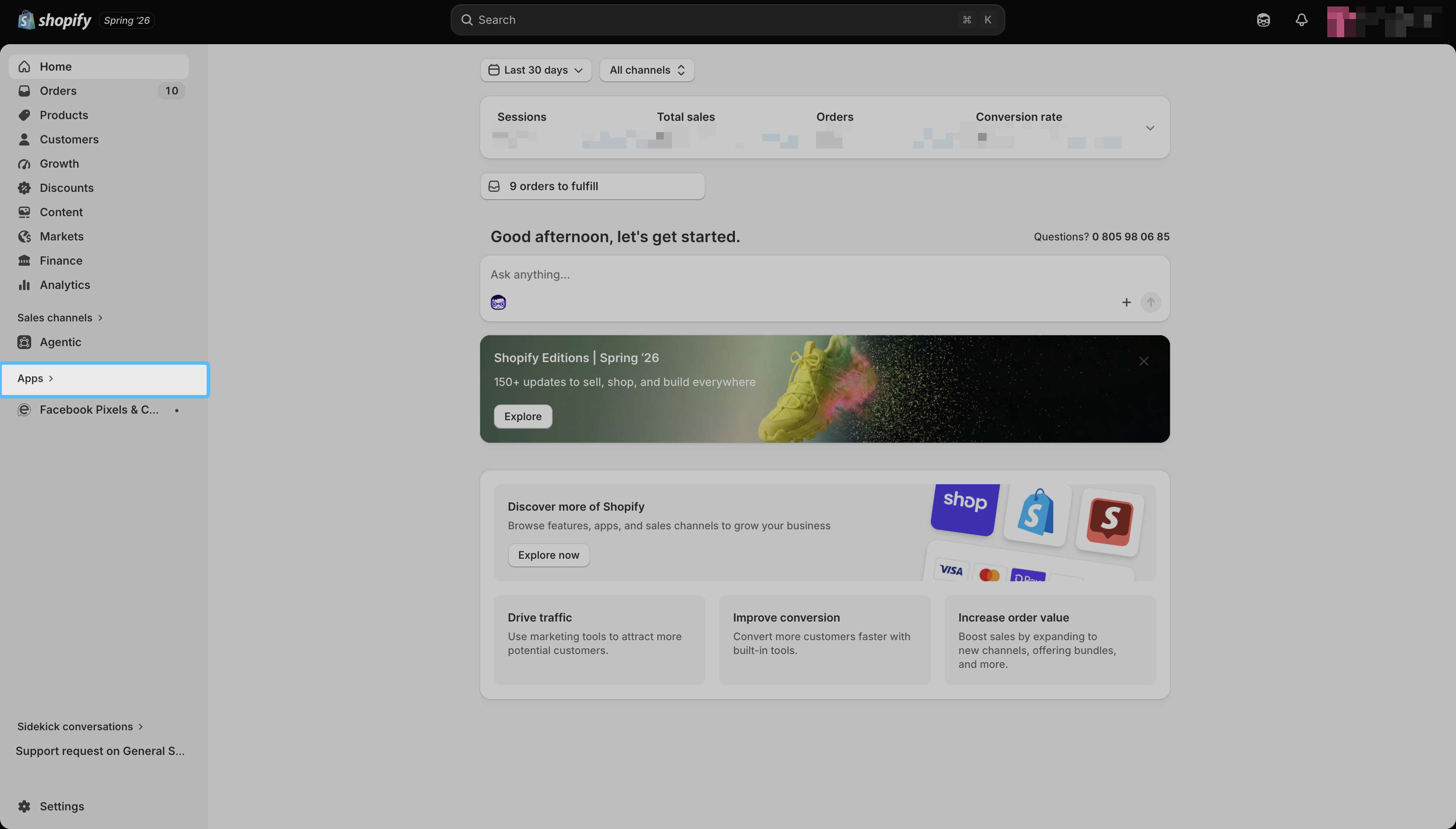
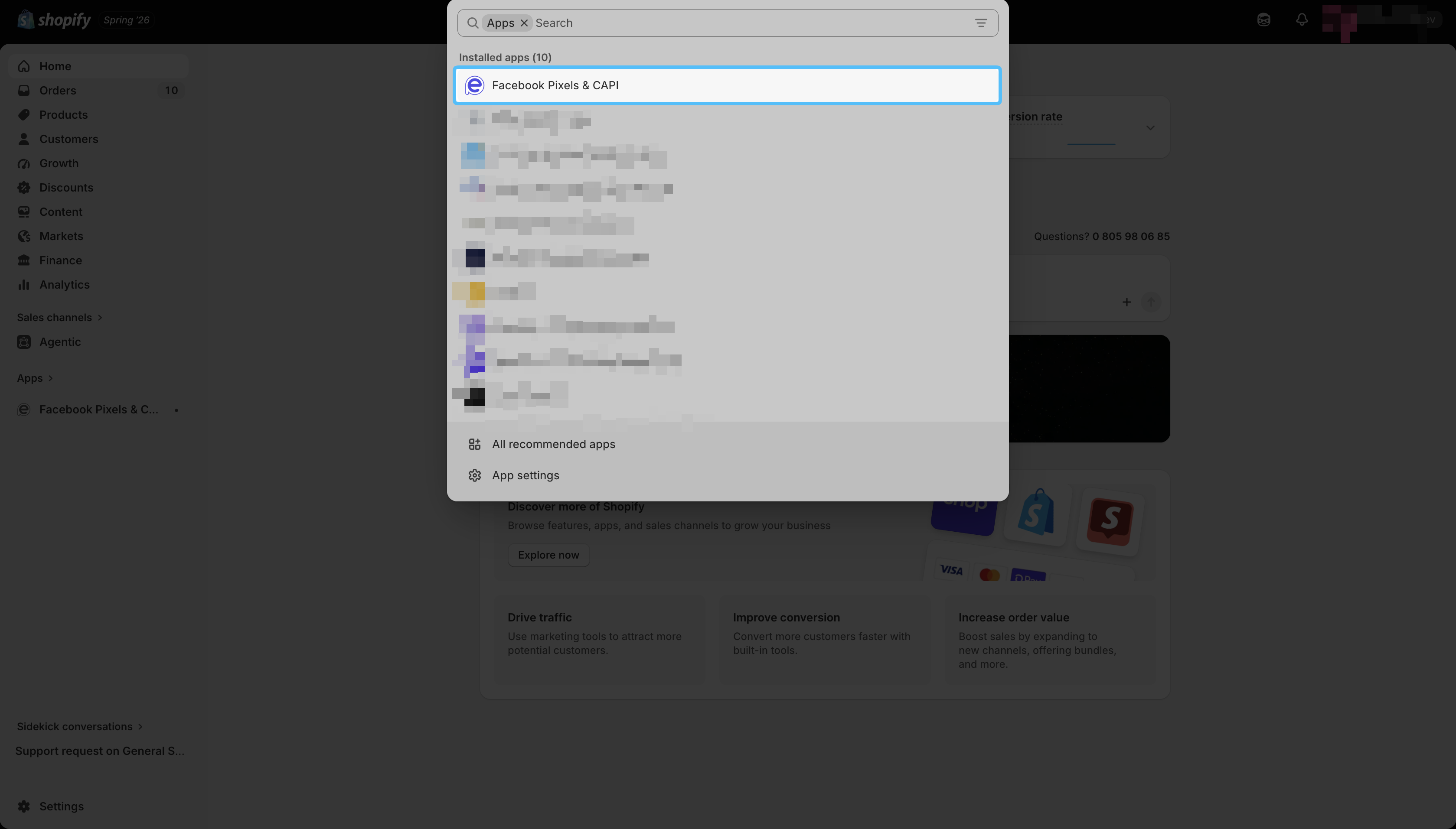
- Find the pixel you want to replace, and click Settings in front of it.
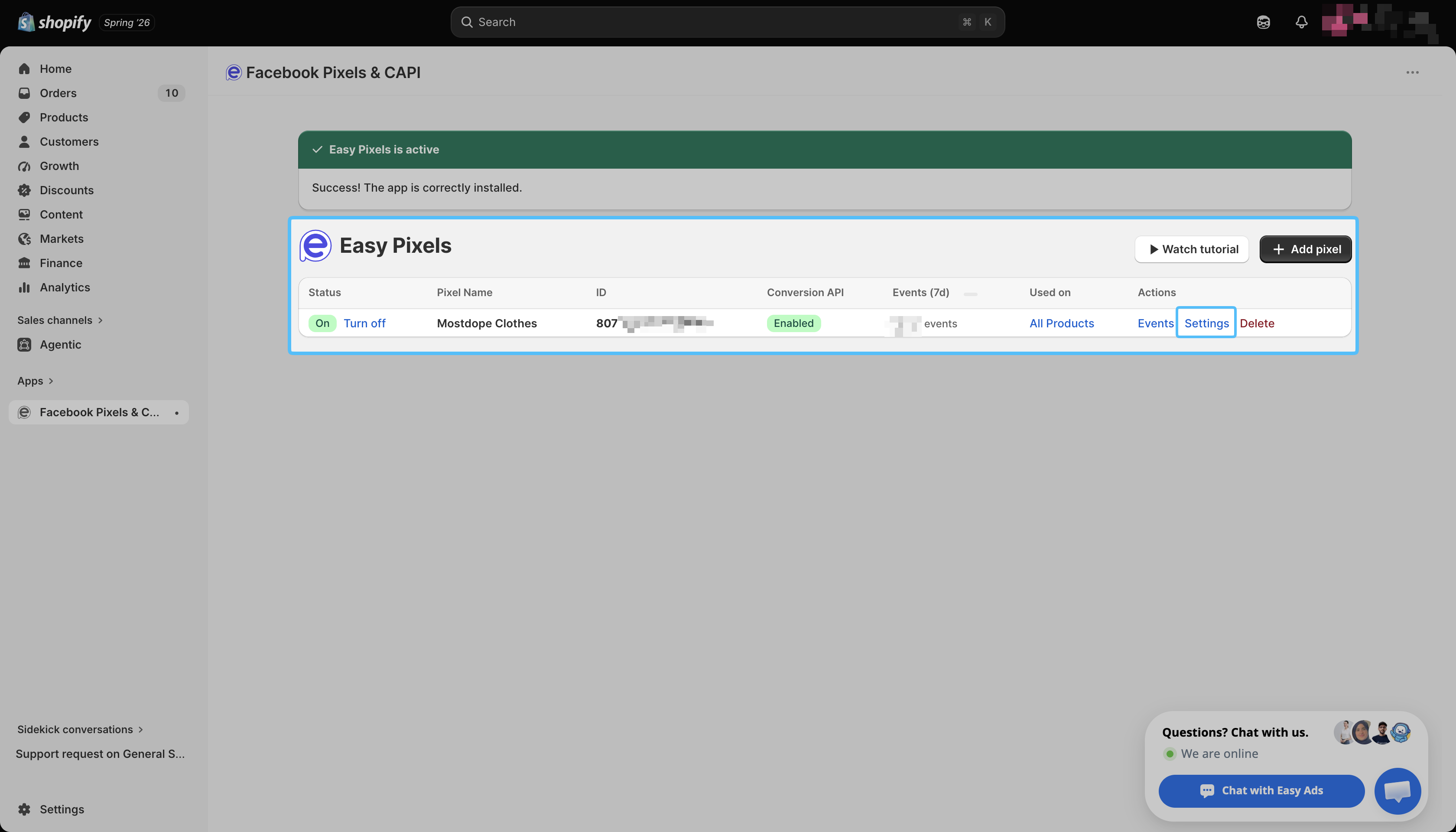
-
Once in Settings, you can set up your new pixel in one of two ways:
- Automatically: Select your business from the Business Manager dropdown menu, then choose the pixel you want to install from the Pixel dropdown menu.
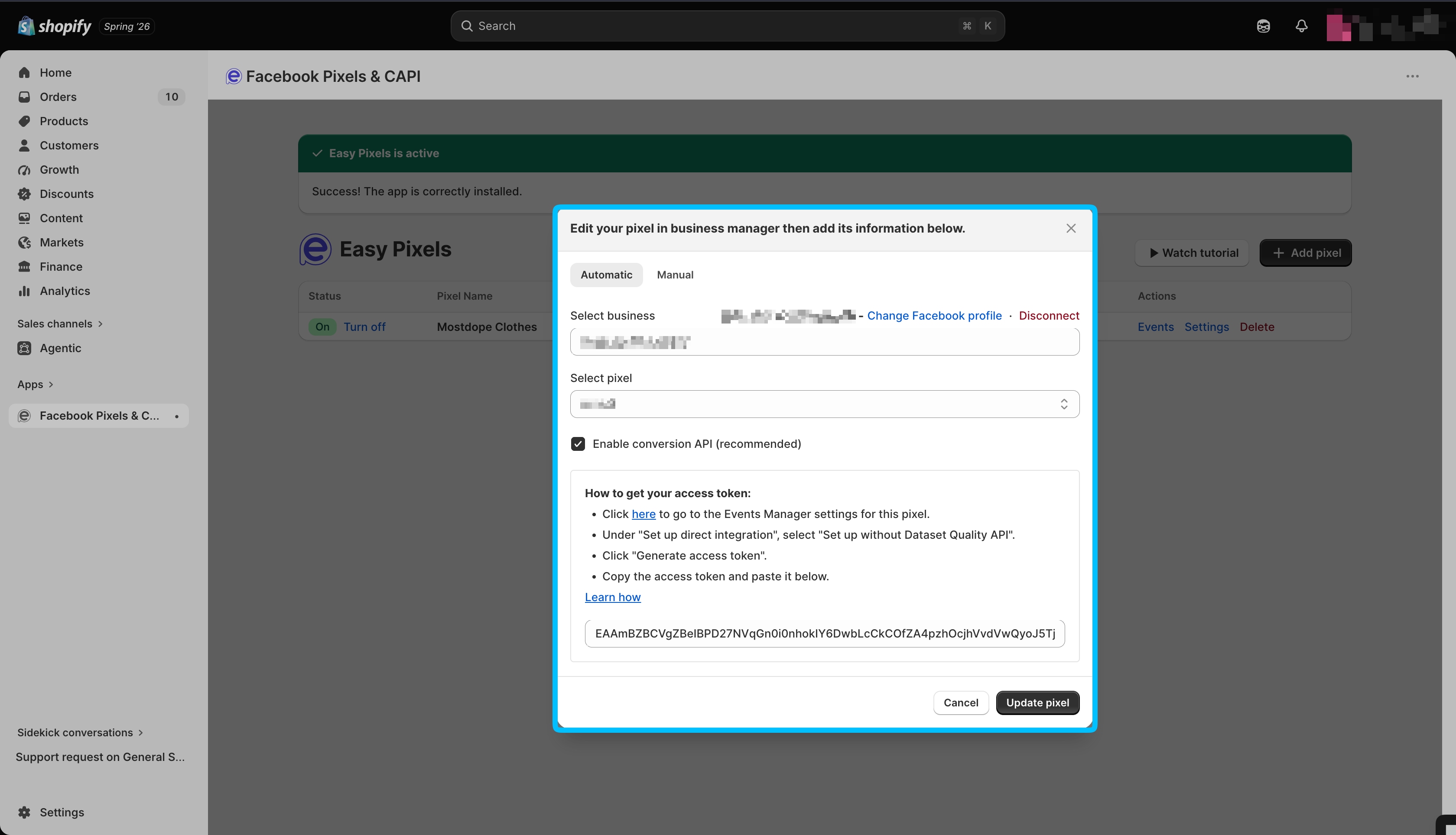
- Manually: Enter the pixel name and pixel ID directly.
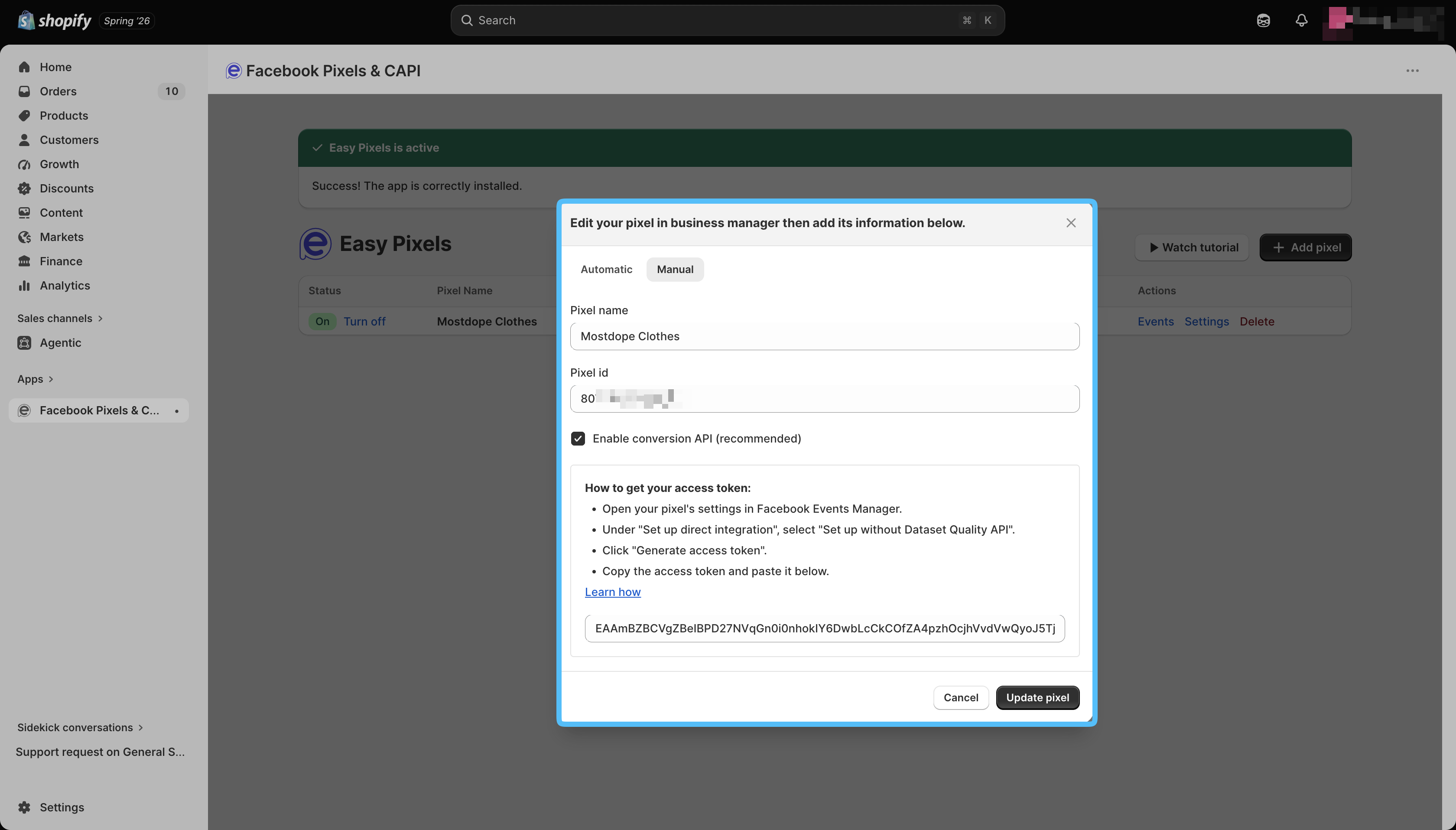
- After completing the connection process, you'll be able to confirm and finalize the new pixel installation.
That's it! You've successfully changed the pixel installed on your store through Easy Pixel.
If you face any issues or have any questions, please contact our support team via our email address at [email protected].