How to Launch Video Ads in Easy Ads
Easy Ads offers two ways to set up your campaign: the AI onboarding chat or Standard campaign creation. Pick the section below that matches the flow you're using. Each one walks you through running a video ad from start to finish.
AI onboarding chat
Ready to launch a video ad using the AI onboarding chat? Here's how.
- Open Easy Ads and click Use my own image or video.
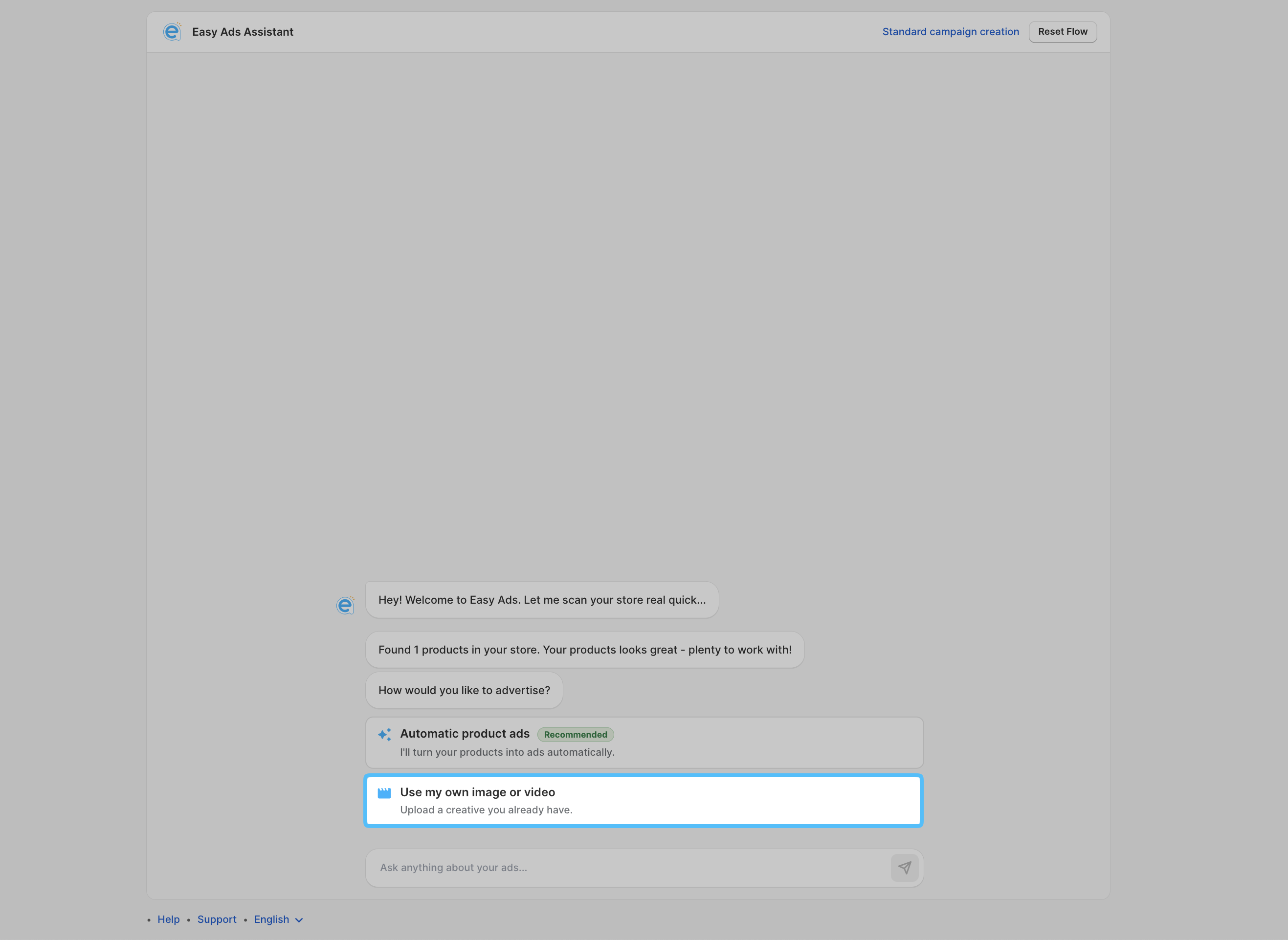
- The first thing you'll see is an upload prompt: "Drop a file or click to upload."
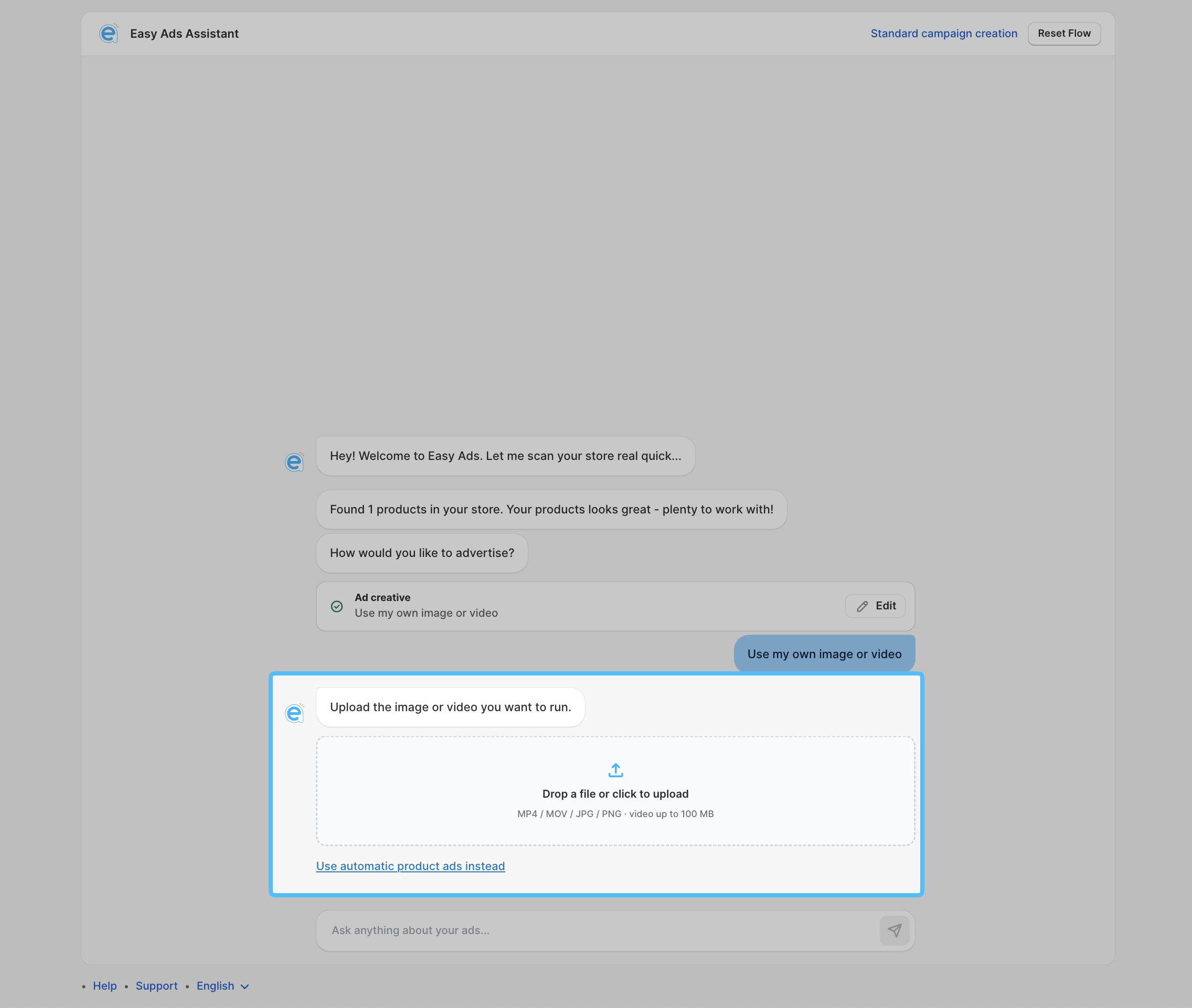
-
Drag your video file into the box, or click to browse and select it from your device.
-
Easy Ads supports these video formats: MP4 / MOV / JPG / PNG, and the maximum video size is 100 MB
-
Once uploaded, your video is attached to the campaign. Continue through the chat to finish setting targeting and budget, then launch your ad.
That's it! Your video ad is live and running through the AI onboarding chat.
Standard campaign creation
Prefer the Standard campaign creation flow? Here's how to get your video ad up and running.
-
Open Easy Ads and connect your Facebook accounts.
-
After finishing the connection step, you'll reach the third step, called Ad Creative.
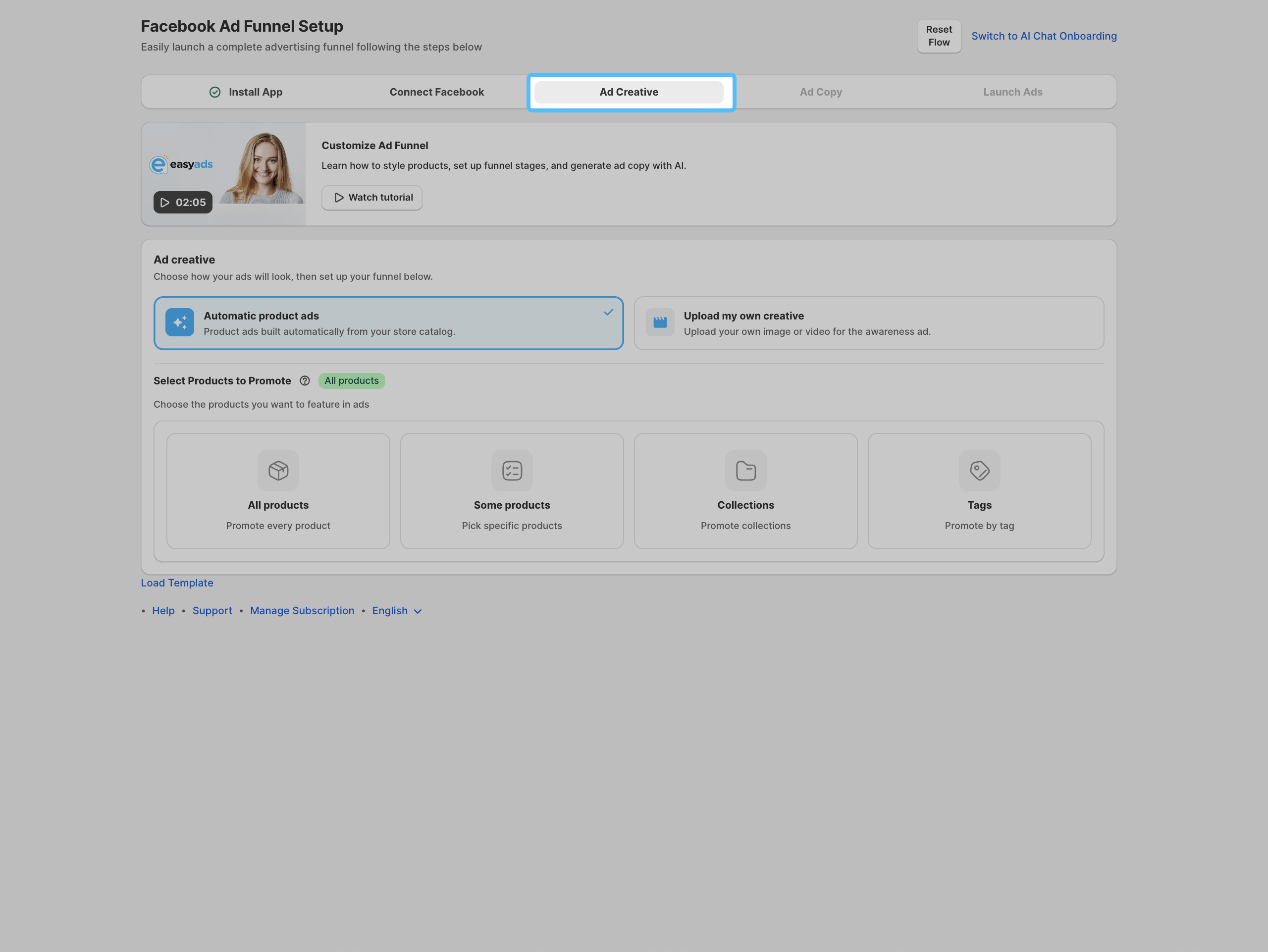
- Click Upload my own creative.
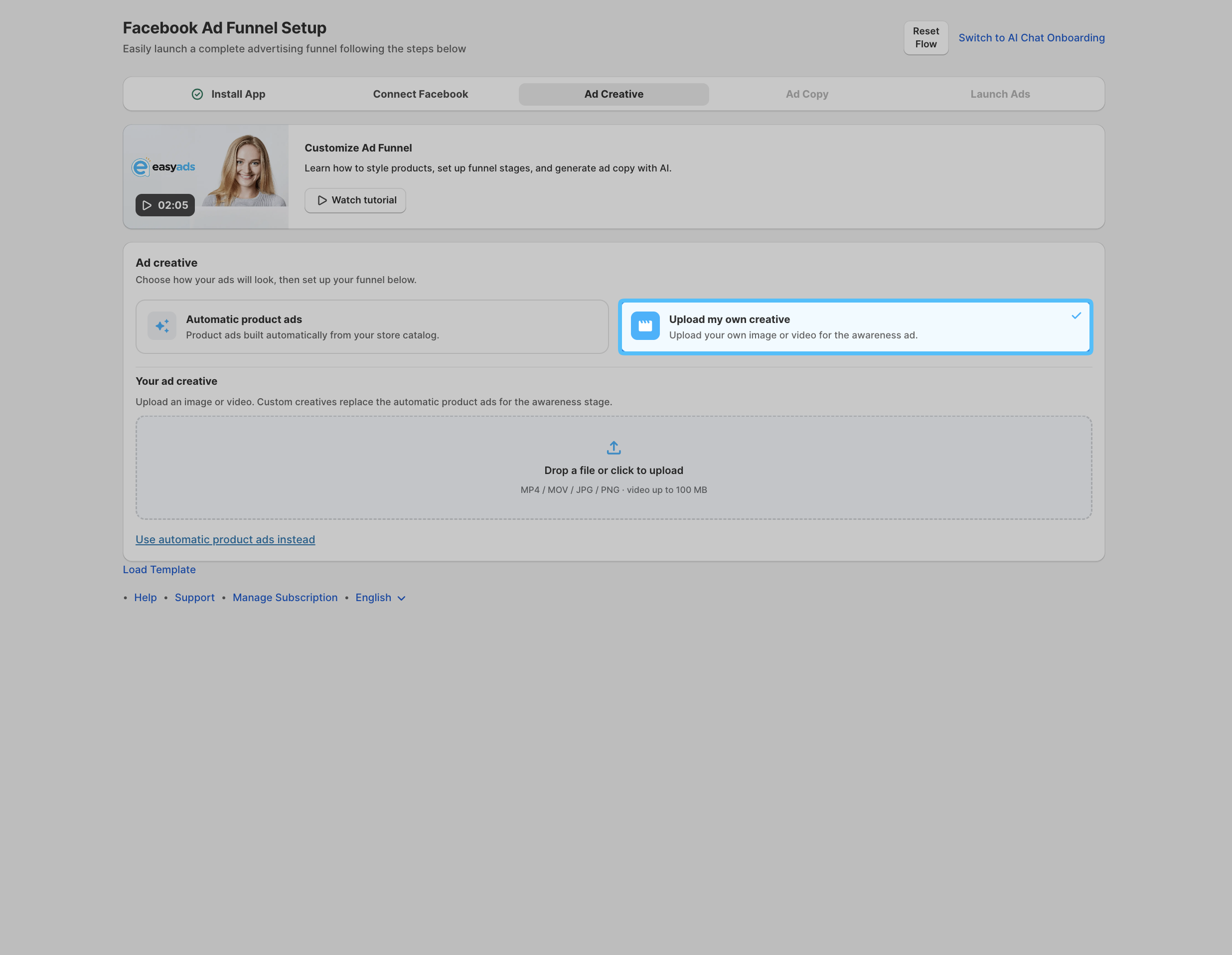
- Once uploaded, your video is attached to the campaign. Continue through the remaining setup steps, targeting and budget, then review and launch your ad.
That's it! Your video ad is live and running through Standard campaign creation.
If you face any issues or have any questions, please contact our support team via the website form here or via our email address at [email protected].