After successfully installing the app (Install tab) and connecting your Meta Business Manager (Connect tab), the next step is select products to promote in Facebook and Instagram Ads.
Option 1: Promote All Products
Automatically advertise your entire Shopify catalog. Facebook will dynamically show the most relevant products to each shopper based on their interests and behavior. Ideal for stores with a large inventory.
Steps:
- Click on the Select Products button.
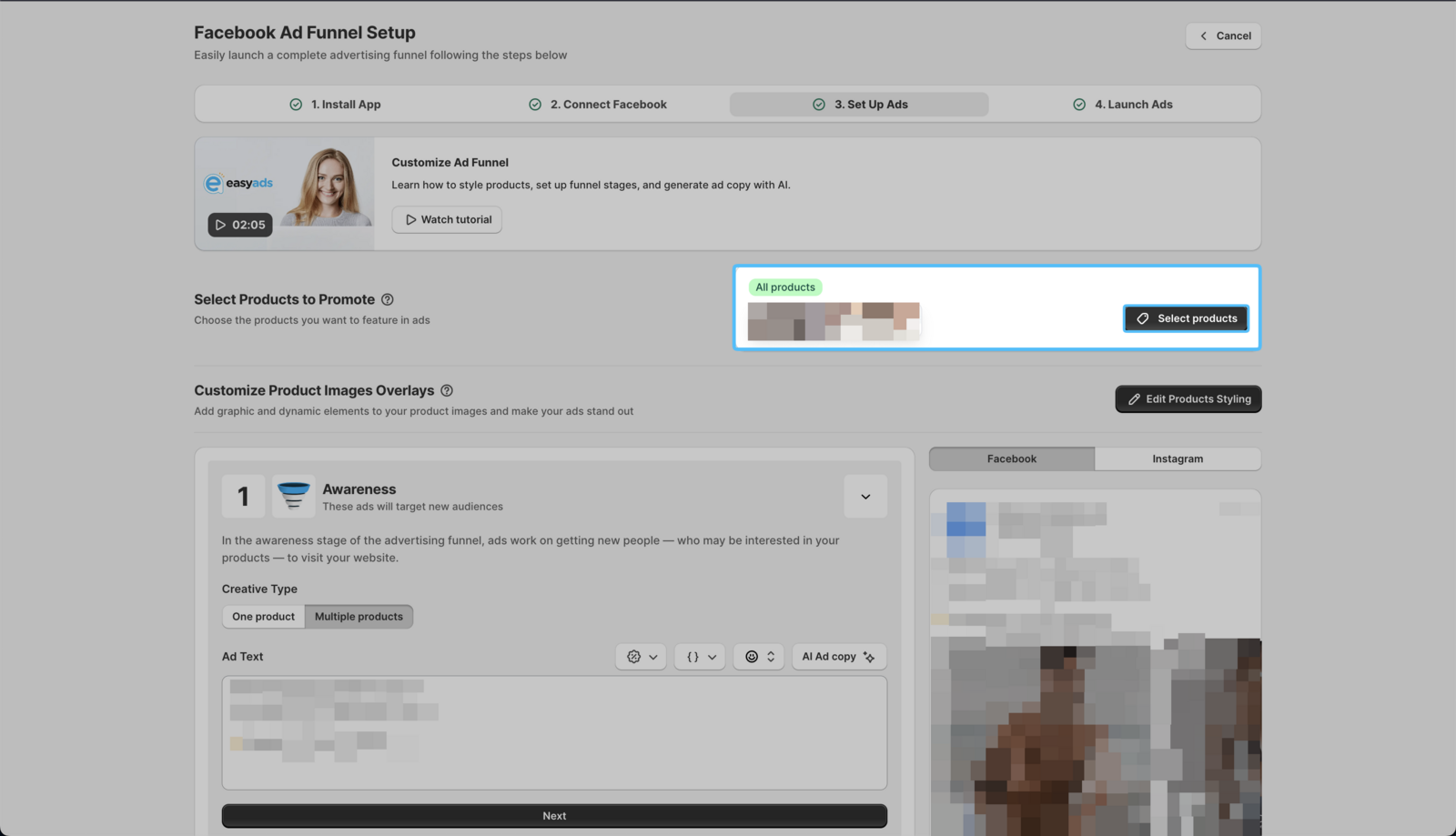
- Select a Default Product Category. You can use the search bar to find a product category that represents the products in your store.
Selecting a Default Product Category is required for submitting your products to Meta. So even if you don't plan on promoting all products, you must select a Default Product Category.
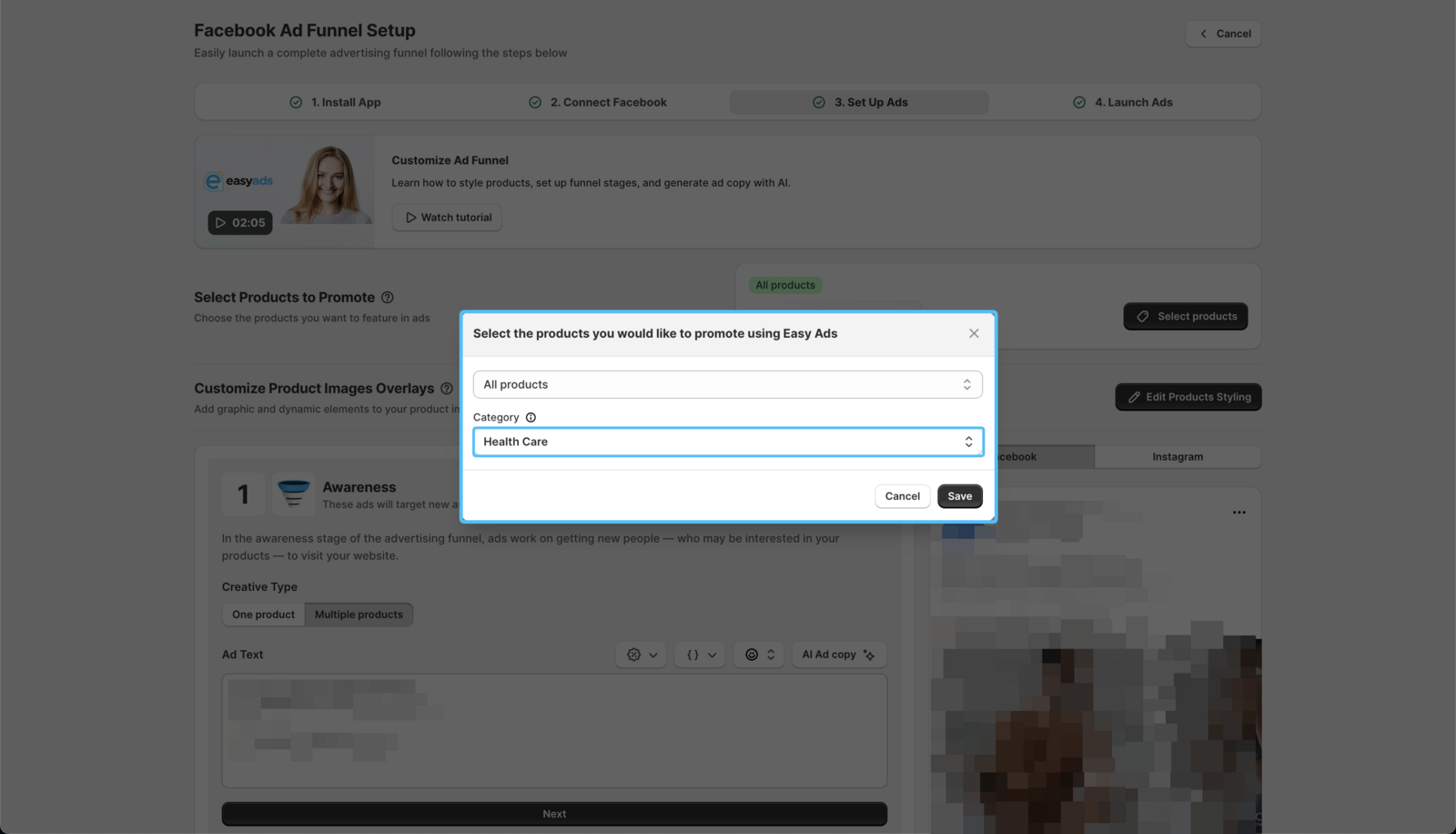
- Click on the Save button.
If you want to promote all the products in your store, you can go ahead and click on the Save button. If you want to promote specific products, continue reading.
Option 2: Promote Specific Products Using Shopify Tags
Choose which products to advertise by using Shopify tags. Only tagged products will be included in your ads, giving you full control over what appears. Best for promoting bestsellers or seasonal items.
Steps:
- If you want to promote specific products, click the first menu to reveal the options, then select the Only some tags tab
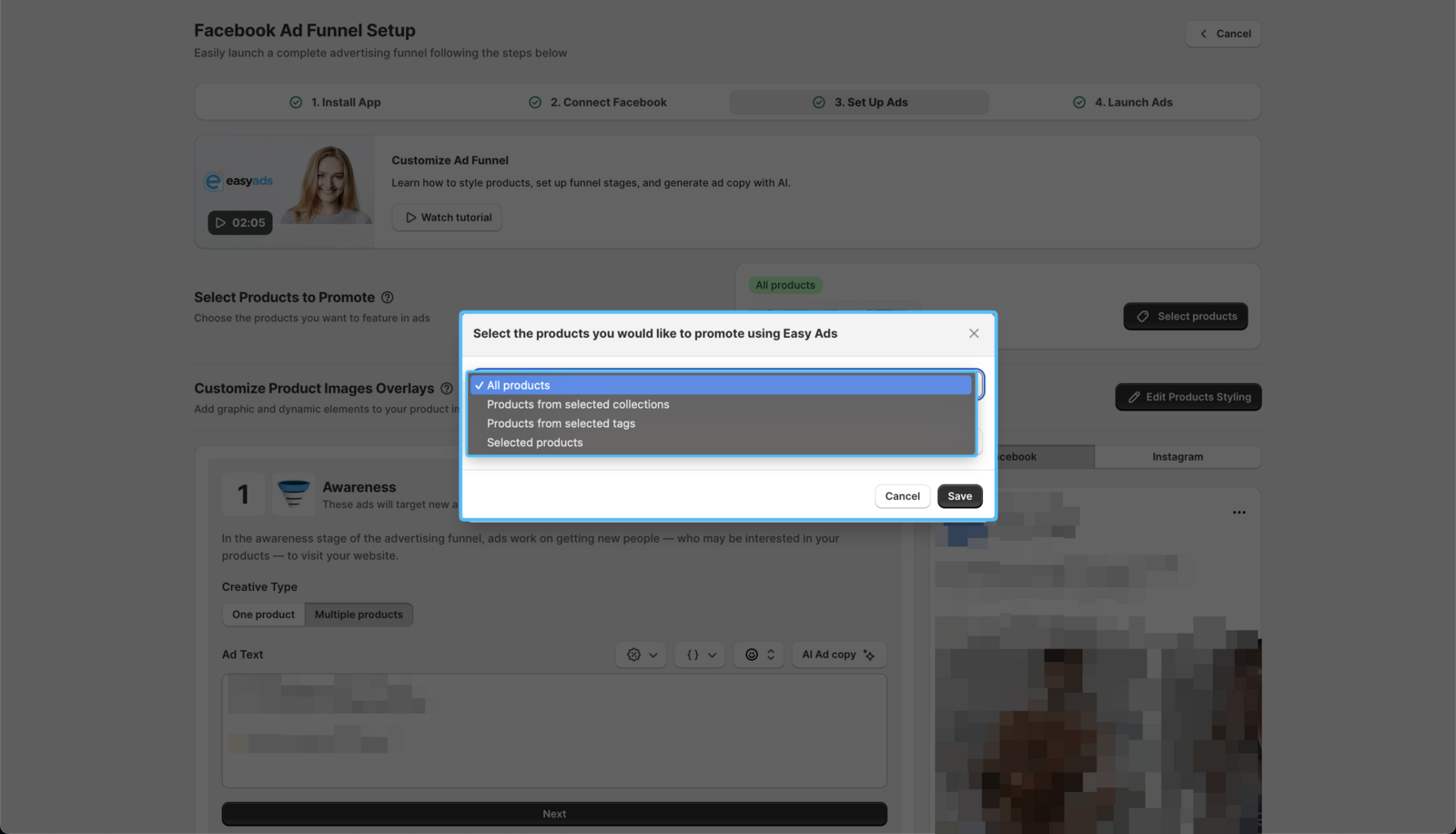
- Choose the tags associated with the products you want to promote.
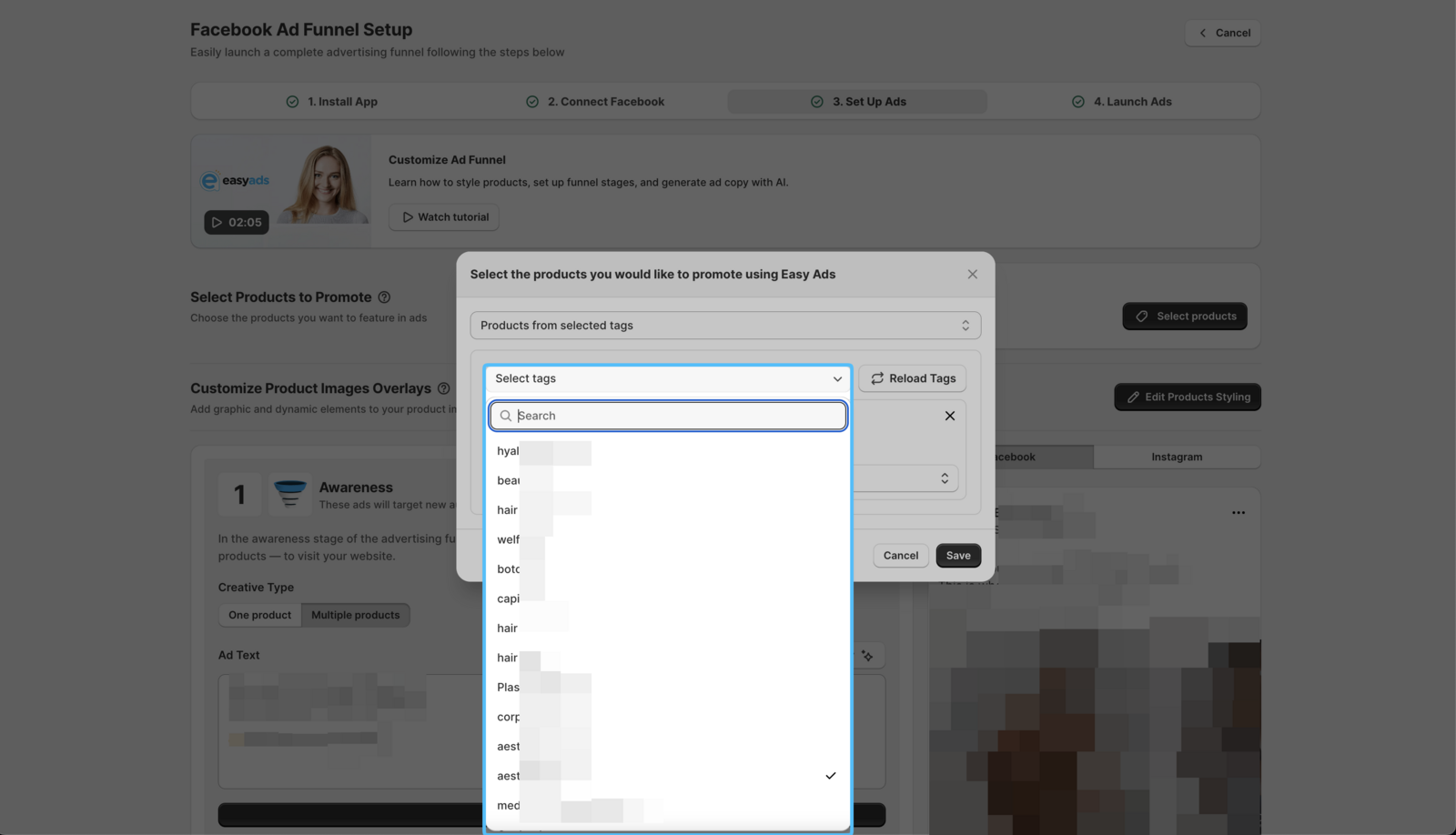
Easy Ads for Facebook uses product tags in order to pull products from your Shopify store to show in ads. Tags are an internal management system and are not visible in your store or in ads. They also don't affect targeting. Their sole purpose is to determine which ads are shown in ads and to help assign a product feed category to your products in order to enhance audience targeting. You can learn more about creating and managing tags here: Creating and using tags in Shopify.
- Select a Default Product Category that represents the products selected in your store.
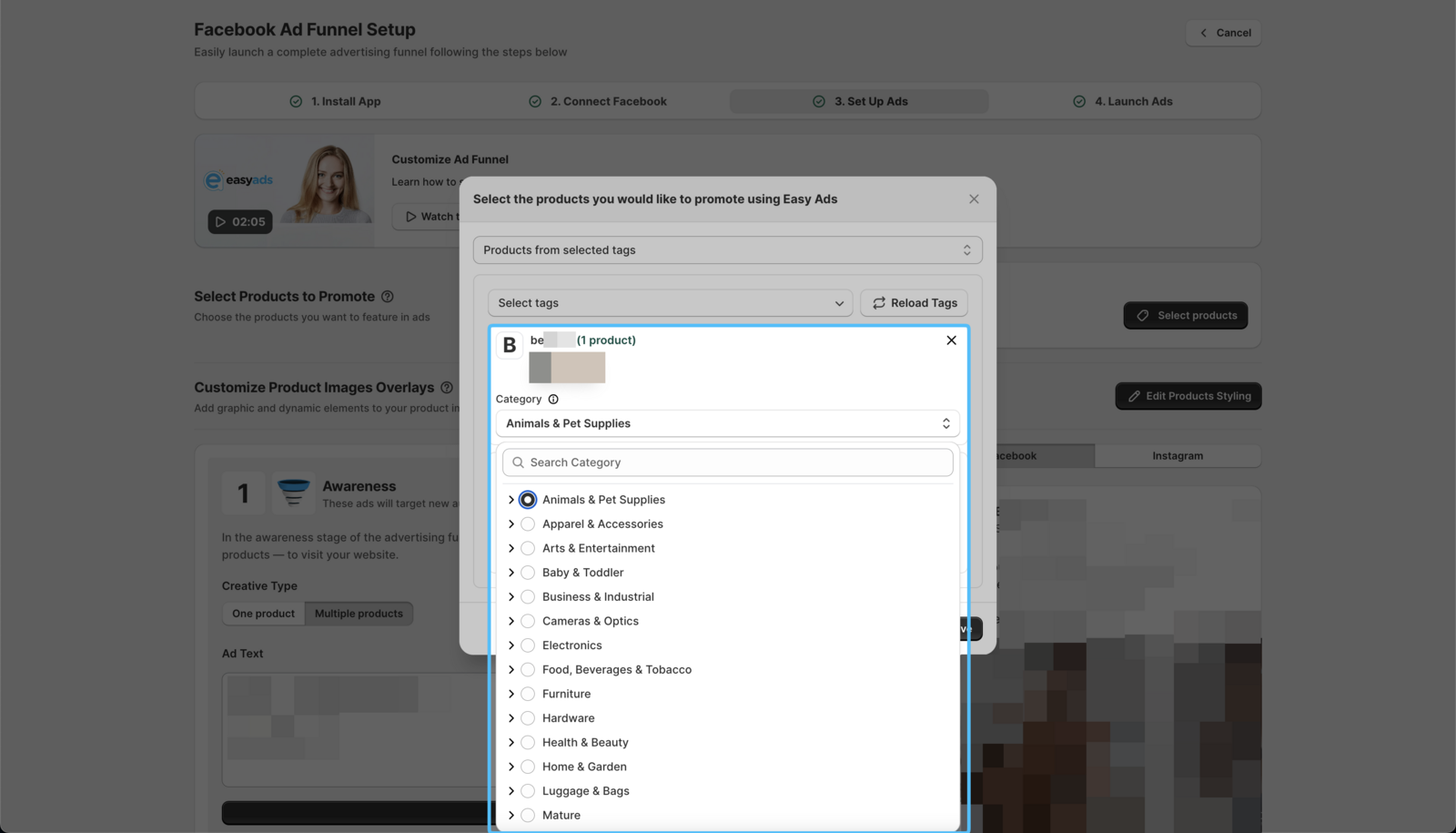
- Repeat steps 4 and 5 for every product tag you'd like to add.
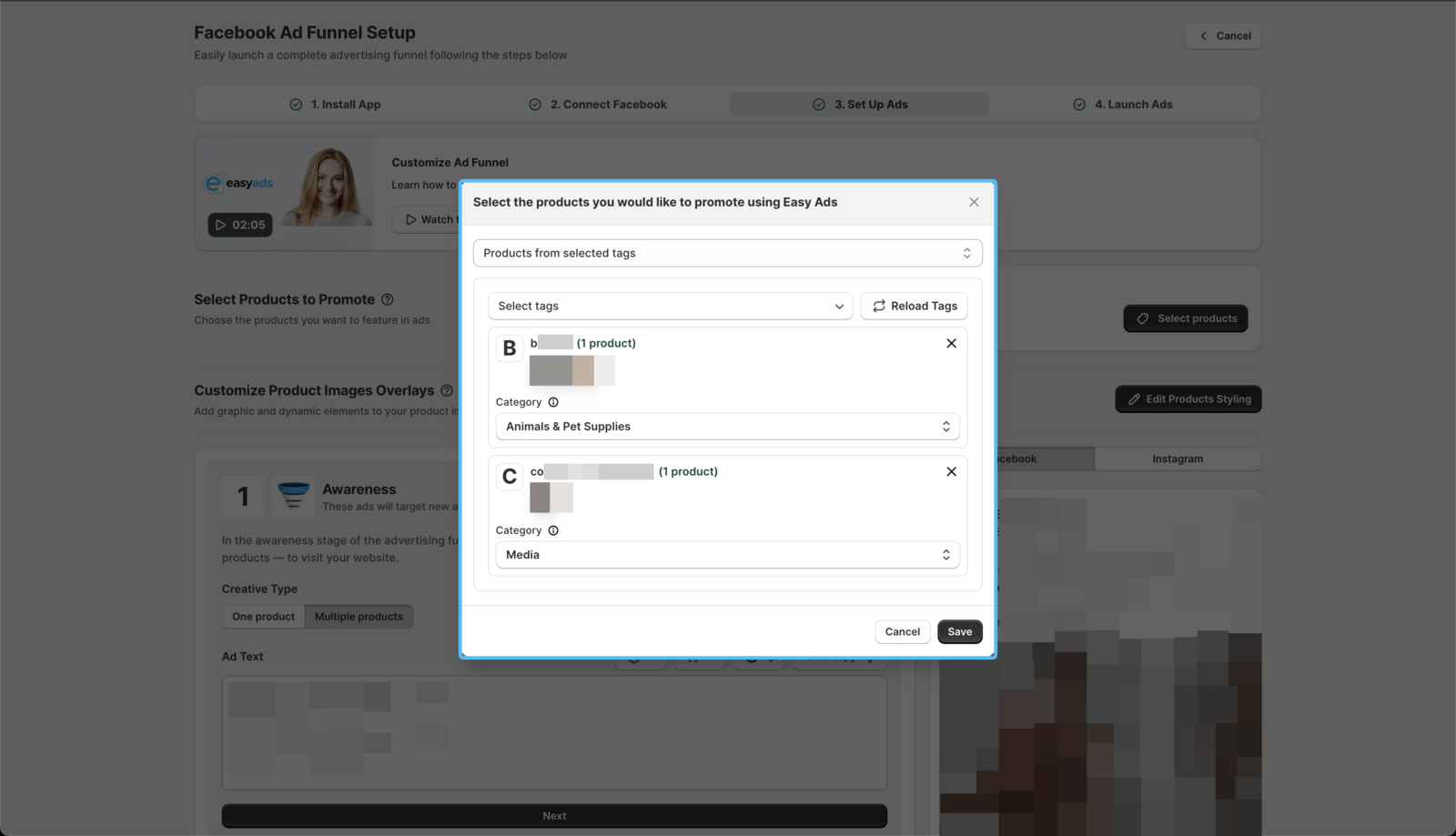 5. Click on the Save button.
Option 3: Promote Products From Selected Collections
Steps:
If you want to promote only specific collections, this option is for you.
- Select Products From Selected Collections in the first menu.
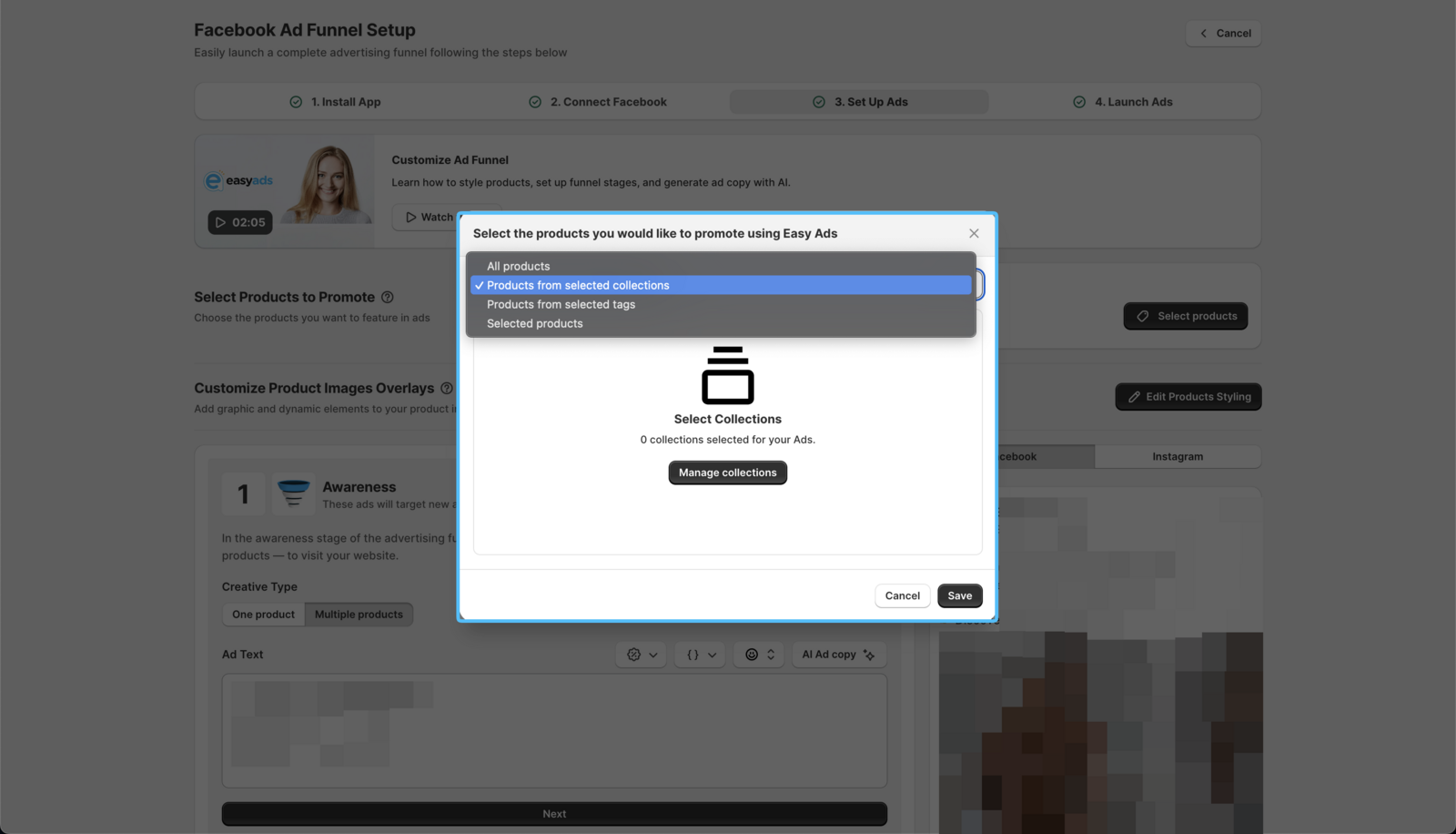 2. Click Manage Collections to see all your store's collections.
- Select the collections you want to promote and add a category for each collection.
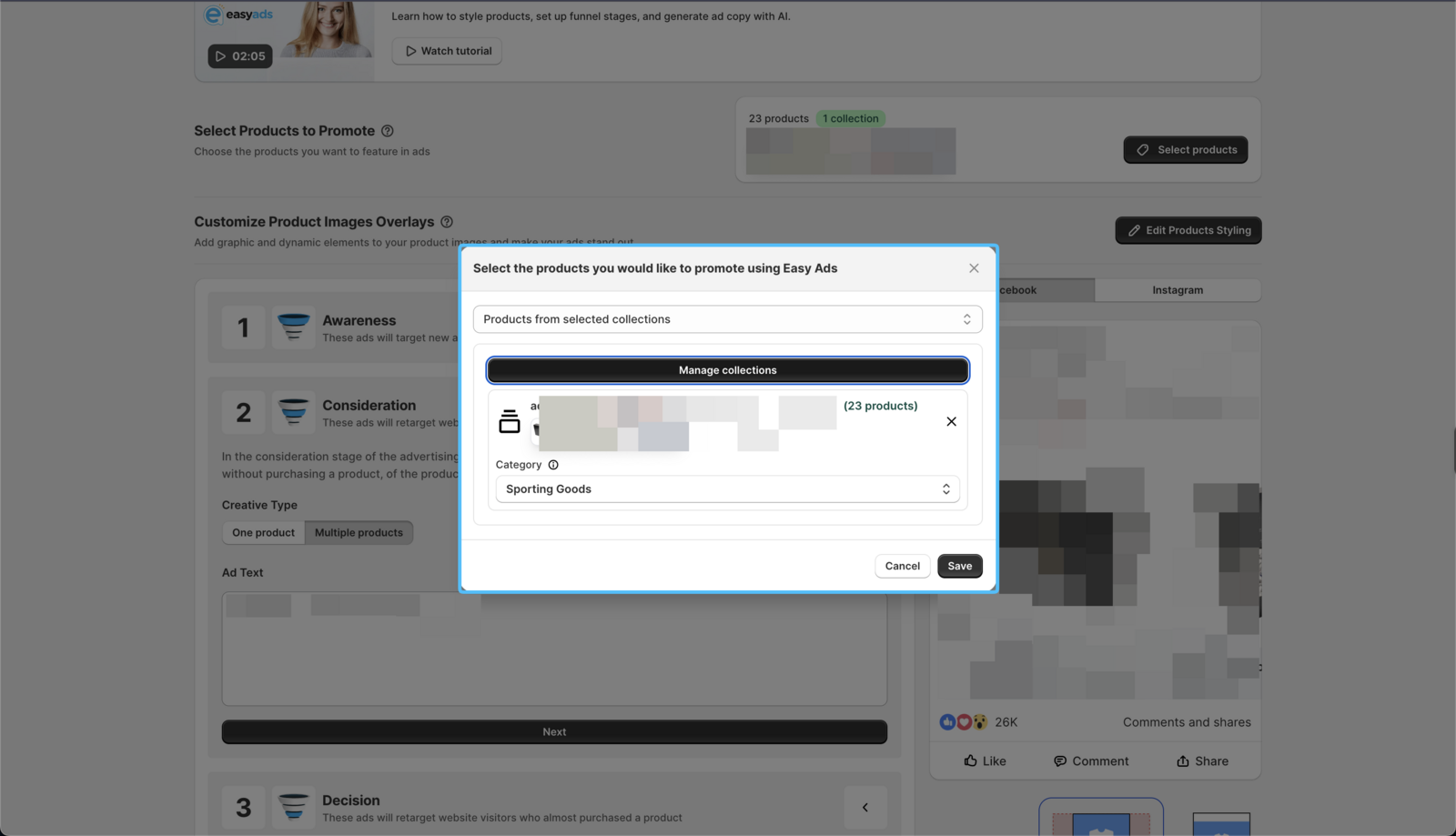 4. Click on the Save button.
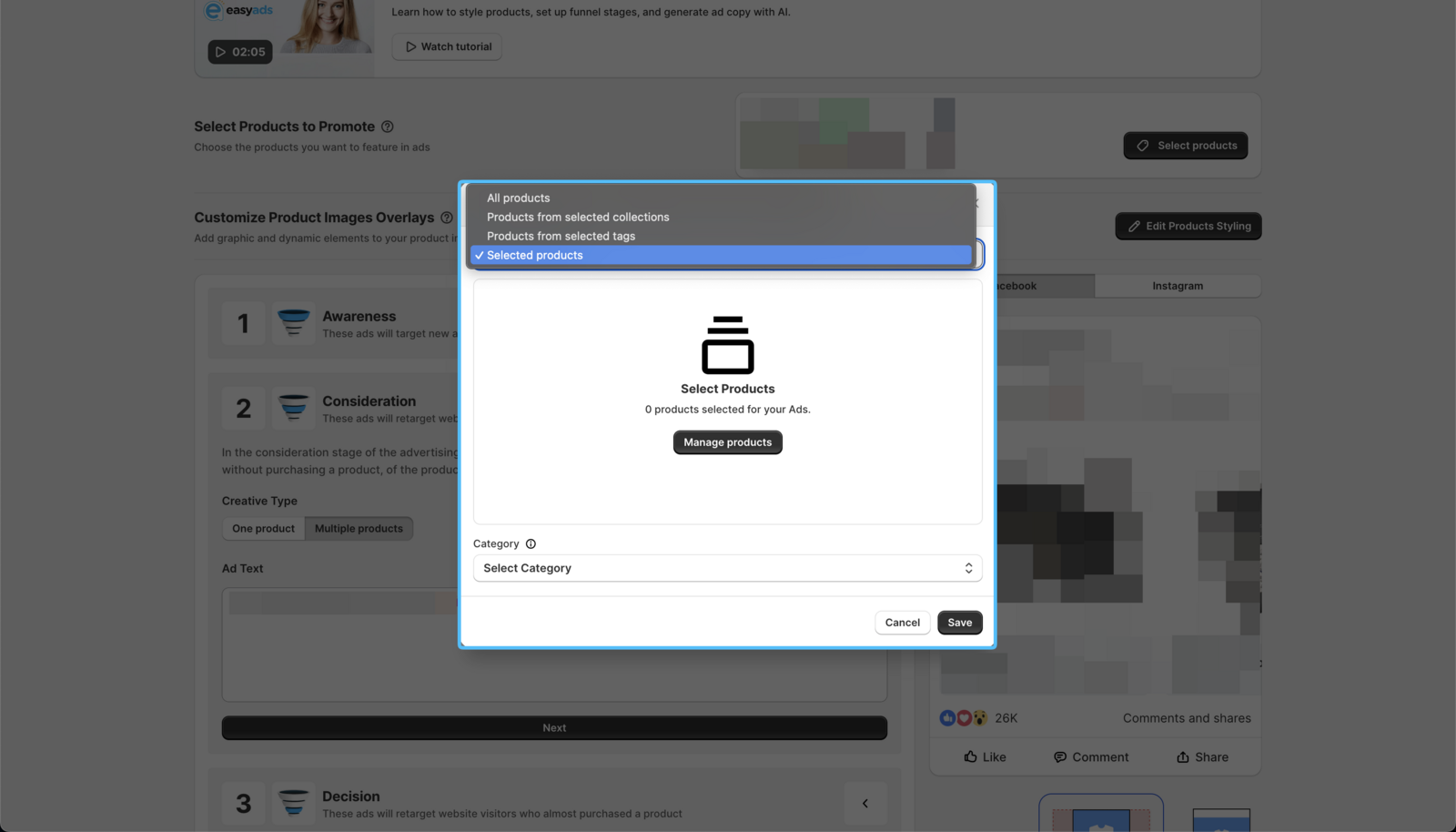
Option 4: Select Individual Products
This option allows you to select individual products.
Steps:
-
Select Promote Products.
-
Click Manage Products and select the products you want to promote.
-
Select a category for each product.
-
Click on the Save button.
The next steps will be visible now.
If you can't see specific tags or need help, contact us via live chat anytime.
Next, learn how to customize your product styling for your ads.