How to Change the Video You Uploaded to Easy Ads
Running a campaign and want to try a different video? You don't have to pause it or build a new one from scratch. Easy Ads lets you swap the video on an existing campaign in a couple of clicks.
Here's what to do:
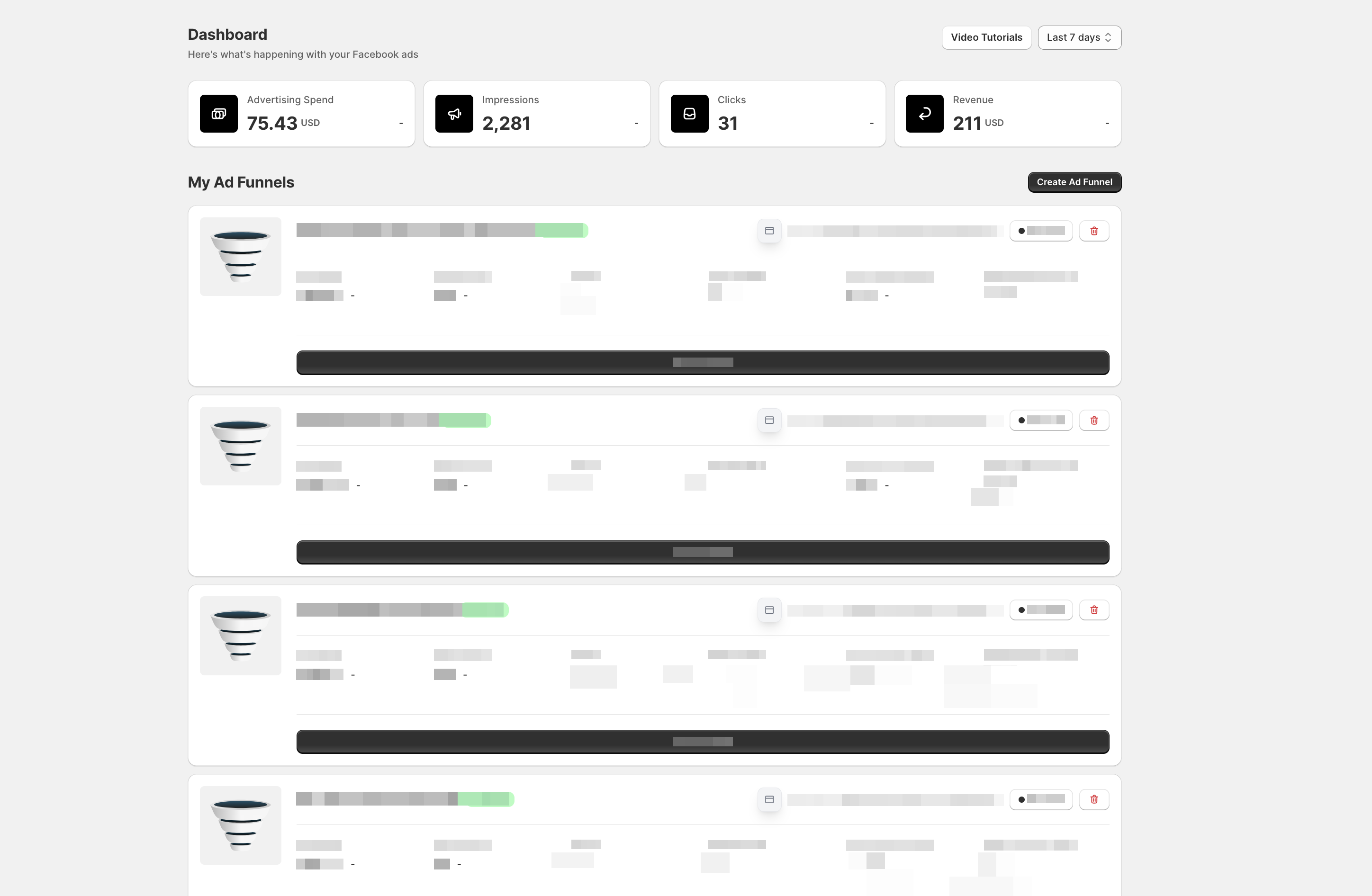
- Open Easy Ads in your Shopify store.
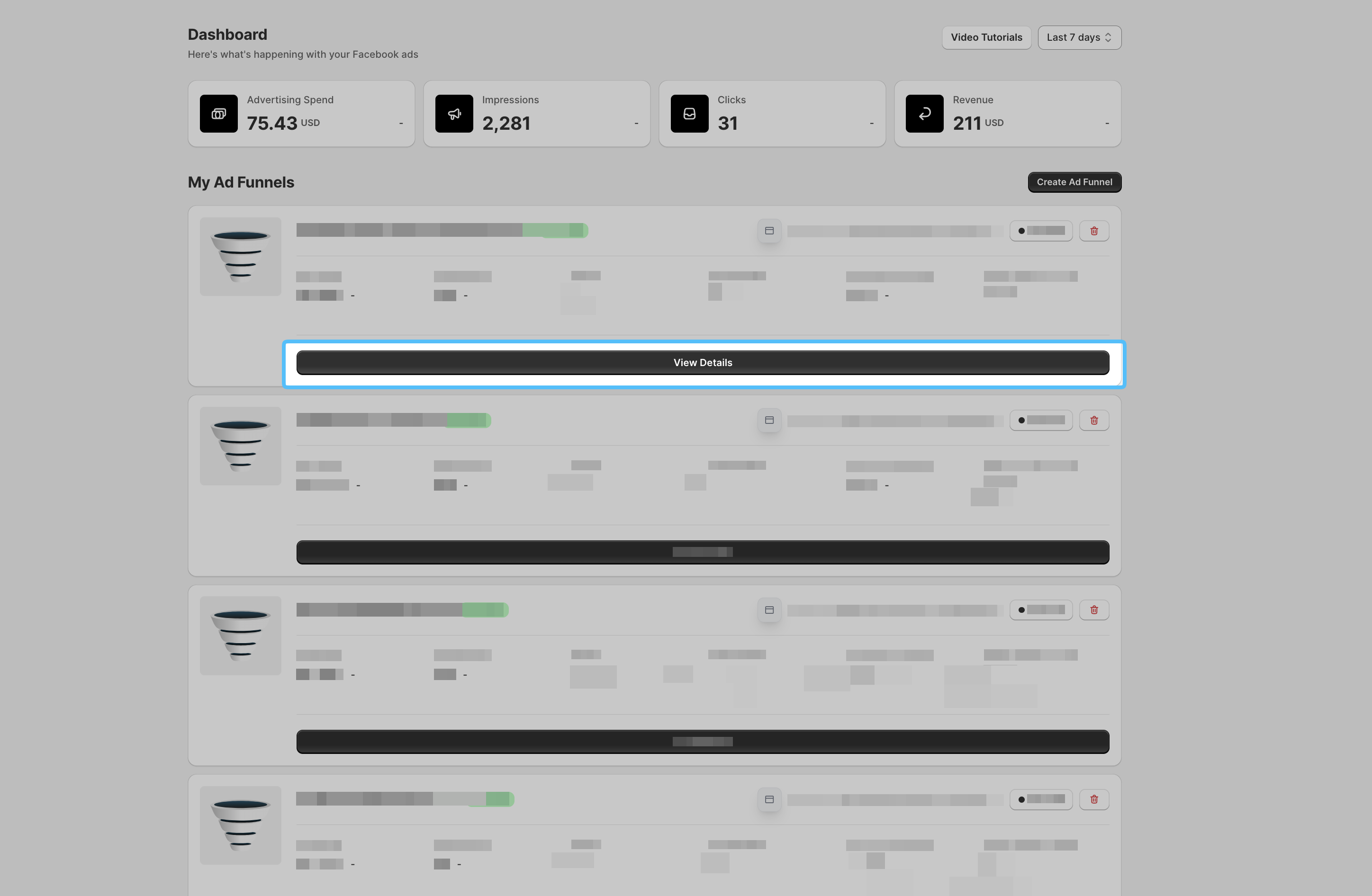
- Locate the campaign whose video you want to change, and click "View Details."
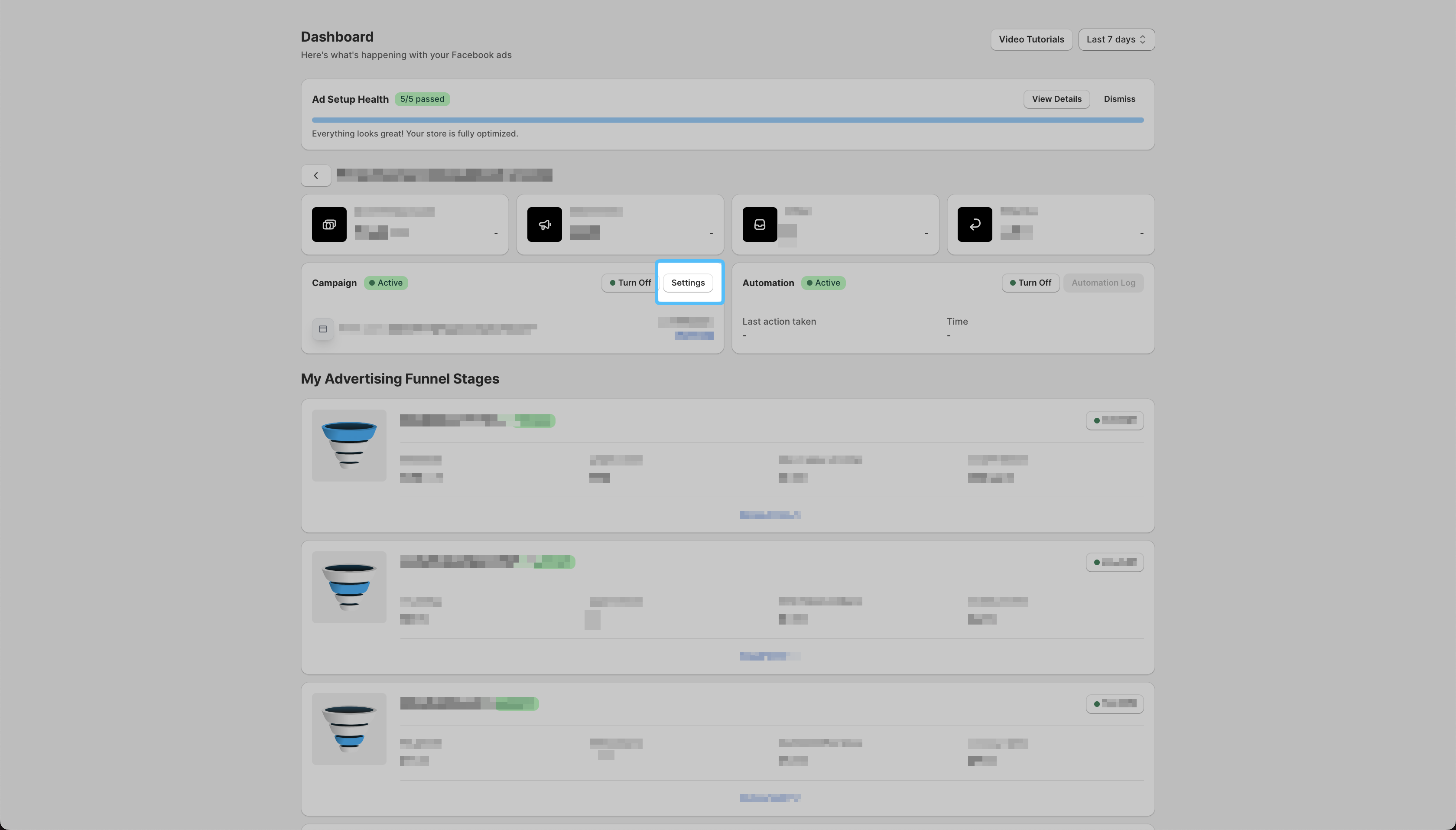
- Click Settings.
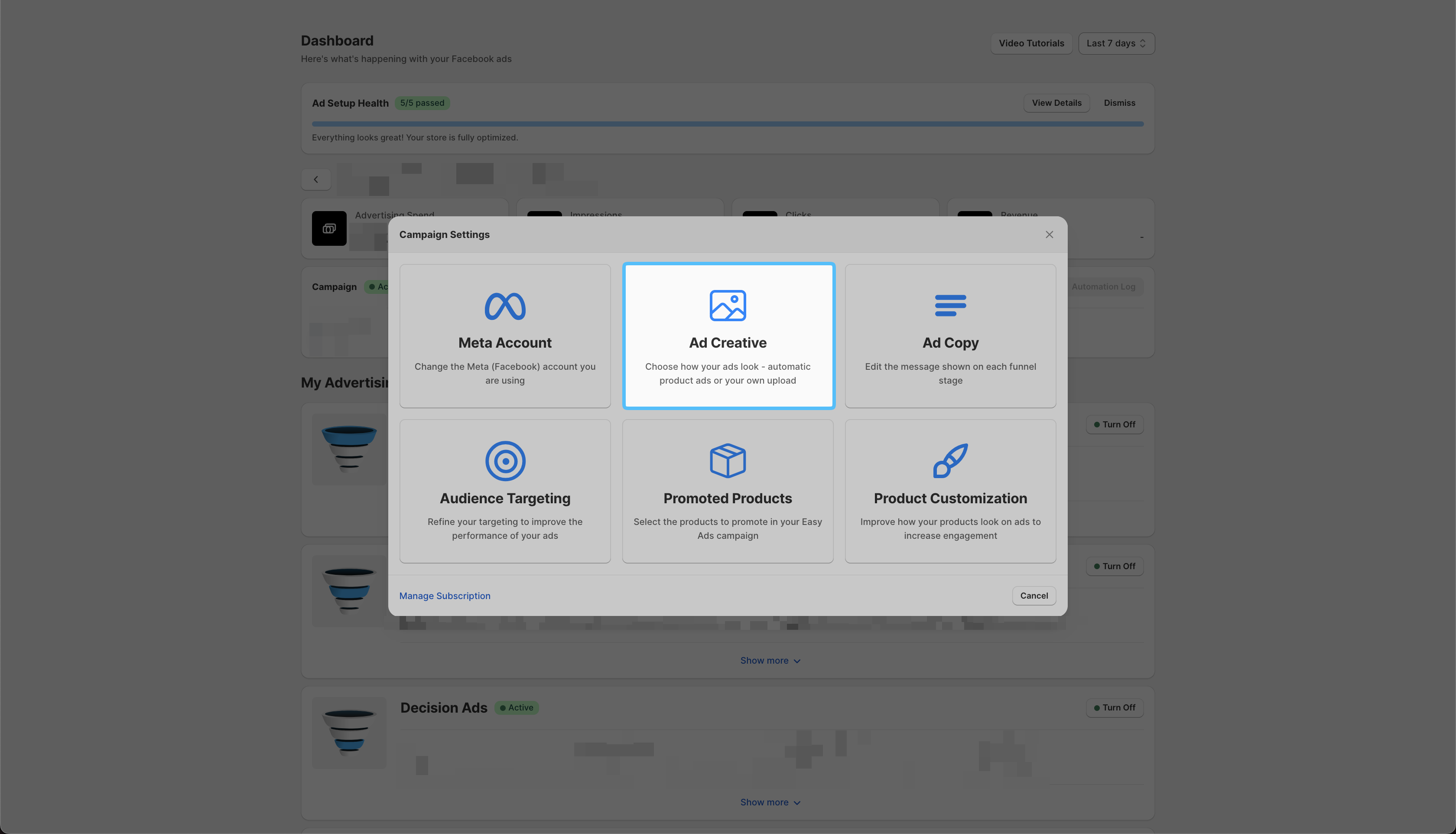
- Click Ad Creatives.
- Click Replace, then upload your new video.
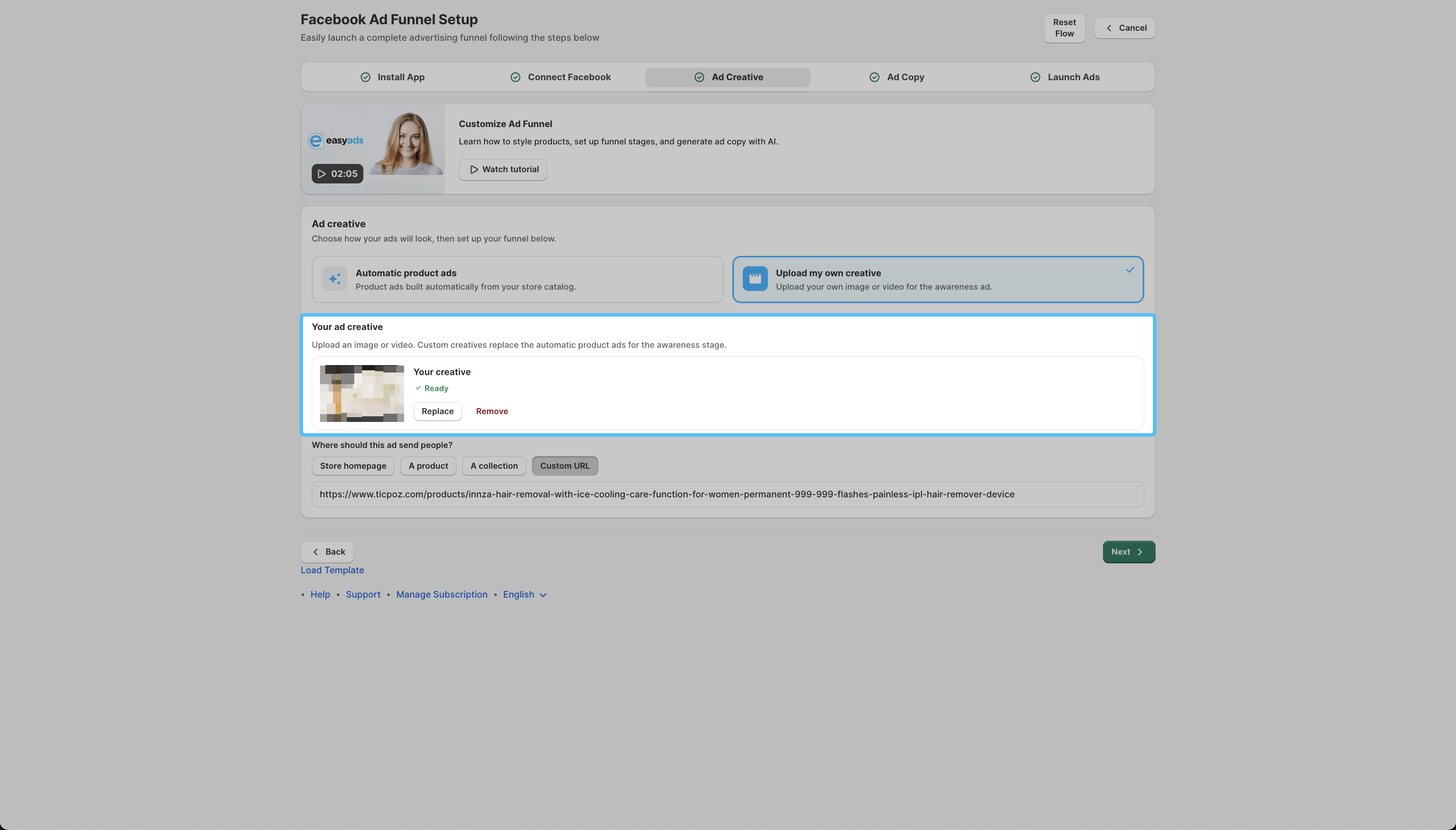
Your campaign will pick up the new video right away. Just make sure it's an MP4 or MOV file and under 100 MB, or the upload won't go through.
One thing worth knowing before you do this: replacing your ad creative resets your campaign's learning phase. Meta sees a new video as a big enough change that it needs to relearn how your ad performs, so don't be surprised if results dip or get a little unpredictable for the next few days.
It's not a bug; that's just how Meta's algorithm handles creative changes, and your past data isn't lost; it's just paused while the algorithm catches up.
Note: If your upload keeps failing, it's almost always the file type or size. Ensure your video file is MP4 or MOV only, and keep it under 100 MB.
Still running into trouble? Message us on live chat inside the app, or email [email protected], and someone will take a look.